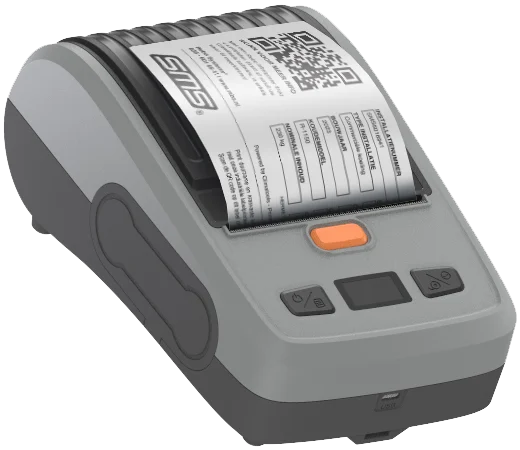
Designed for mobility and convenience
De SMS-330 portable labelprinter is volledig draagbaar en uitgerust met een krachtige oplaadbare accu. Of u nu op locatie bij een klant werkt, in een werkplaats of onderweg bent, deze printer werkt overal waar u hem nodig heeft.
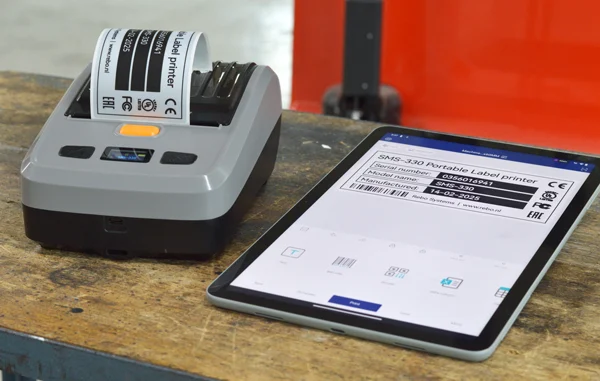
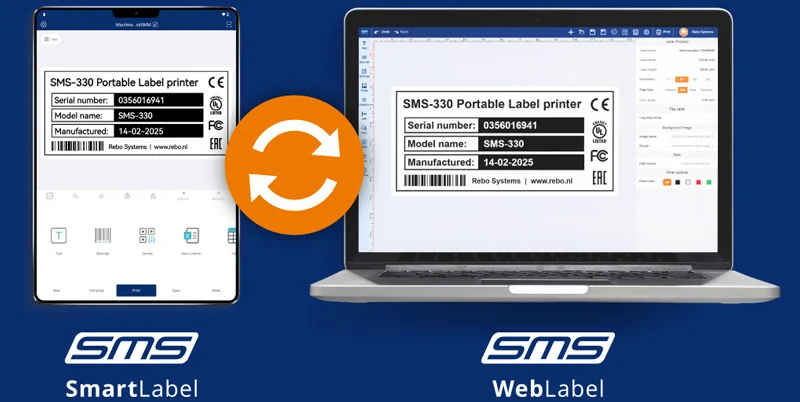
Met de Bluetooth-functionaliteit verbindt u de printer eenvoudig met uw telefoon of tablet, terwijl de USB-aansluiting zorgt voor naadloze integratie met Windows-systemen via onze online applicatie SMS WebLabel óf print uw labels vanuit NiceLabel.
Small in size – Big on possibilities
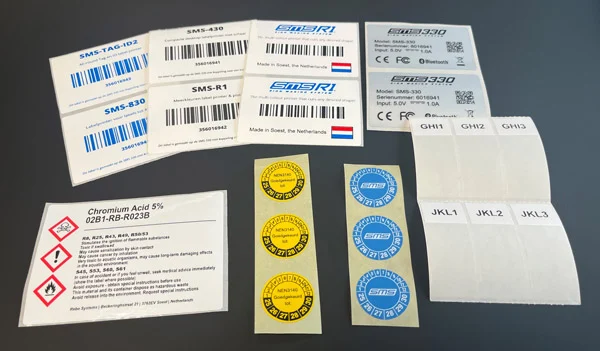
The SMS-330 offers a print width of up to 81 mm, making it perfect for a wide range of labeling applications. Whether you are printing nameplates for cooling installations from an online application (such as Climatools), need product labels, or have to label cables and inspect machines on-site, this compact label printer allows you to create durable labels with ease.
Smart features to get you started immediately
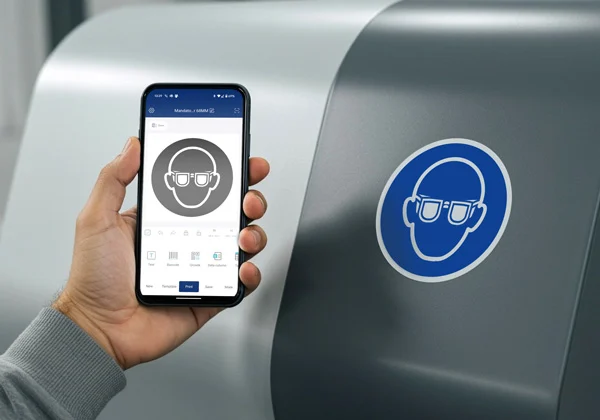
De SMS-330 is ontwikkeld om labelen zo eenvoudig mogelijk te maken. Met slimme sjablonen en een duidelijke interface maakt u in slechts een paar stappen professionele labels. Of het nu gaat om een barcode, pictogram of tekstlabel – u hoeft geen ontwerper te zijn.
Kies uit een breed assortiment voorgestanste etiketten van vinyl of polyester, in diverse formaten en kleuren. Ook zelflaminerende wikkellabels voor kabelmarkering zijn beschikbaar.
Eenvoudig en gebruiksvriendelijk
Thanks to the smart design of the SMS-330, you can install both the ribbon cassette and the labels in just a few seconds—no complicated procedures, settings, or calibrations required.
The print color is determined by the selected ribbon, allowing you to easily create clear, durable labels that perfectly match any application.
Experience for yourself how fast and smooth labeling can be—in any working environment!
Thanks to the smart design of the SMS-330, you can install both the ribbon cassette and the labels in just a few seconds—no complicated procedures, settings, or calibrations required.
The print color is determined by the selected ribbon, allowing you to easily create clear, durable labels that perfectly match any application.
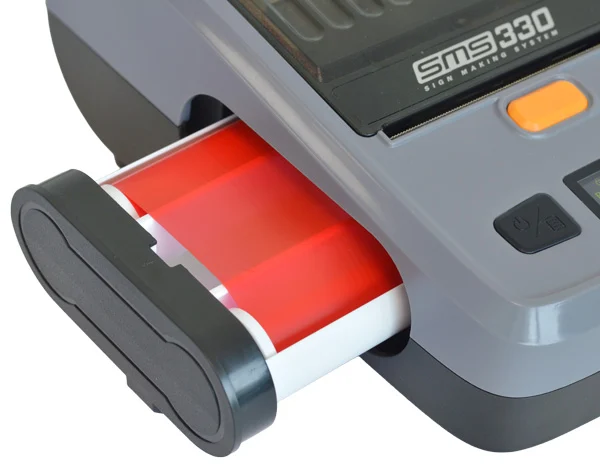
The print color is determined by the selected ribbon, allowing you to easily create clear, durable labels that perfectly match any application.
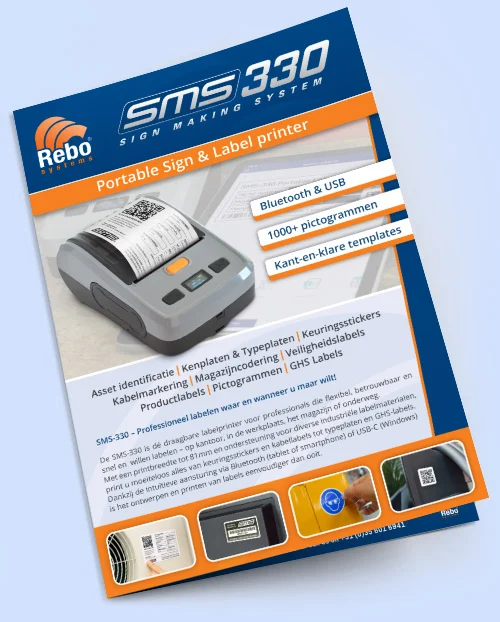
Click on the image to view the brochure.
View the brochure above!
Veelgestelde vragen
Een label ontwerpen
- Open de SmartLabel app en klik op Nieuw
- Geef uw label een naam
- Geef de gewenste breedte en hoogte van uw etiket in
- Selecteer het media type: Gaps of Marks*
- Uw etiket is nu aangemaakt en nu kunt u teksten, barcodes, afbeeldingen etc. plaatsen
- Bent u klaar met ontwerpen? Druk op de knop Afdrukken om naar het afdrukvenster te gaan
- Is uw printer nog niet verbonden? Druk op de rode knop Niet Verbonden linkboven
- Selecteer vervolgens uw printer en druk op Verbinden om hier verbinding mee te maken.
* Gebruikt u een rol etiketten met ruimte tussen elk etiket? Kies dan Gaps.
Gebruikt u een rol etiketten met op de achterkant zwarte strepen? Kies dan Marks.
Een label afdrukken
Bij het afdrukken heeft u een aantal instellingen die u kunt beheren.
- Aantal kopiëen: Hiermee kunt u meerdere kopiëen van éen label afdrukken
- Afdrukrichting: Als de orientatïe van uw label anders moet
- Densiteit: Hoeveel warmte de printer gebruikt om af te drukken (standaard is 10)
- Afdruksnelheid: De snelheid van printen (standaard is 3)
- Horizontale verplaatsing / Verticale verplaatsing: U kunt hier marges toevoegen indien uw ontwerp niet perfect op uw label gepositioneerd is.
Bent u klaar om af te drukken? Druk dan op de blauwe knop Afdrukken!
- Open de SMS SmartLabel app
- Druk op het Tandwiel icoon links bovenin de app
- Druk op Login Cloud
- Druk op de oranje knop Registeren
- Vul het gewenste e-mailadres in en druk op Verifiëren
- Open uw e-mailinbox en kopiëer de verificatiecode die u ontvangen heeft
- Plak de verificatiecode in de app en vul een nieuw wachtwoord in
- Vink de algemene voorwaarden aan en druk de knop Registreren
Nu kunt u inloggen in uw cloud account en heeft u overal toegang tot de labels die u upload!
Een nieuw label synchroniseren
- Ontwerp een label of kies een bestaand label in de map Local
- Als u klaar bent met ontwerpen drukt u op de knop Meer
- Selecteer de optie Delen
- Selecteer daarna Share to cloud
- Klik vervolgens op Uploaden
Het label wordt nu naar uw cloud account geüpload.
U vindt al uw gesynchroniseerde labels onder Sjablonen > Cloud
Een bestaand label bewerken en synchroniseren
Wilt u iets aanpassen in een label dat in uw cloud staat?
Vergeet dan niet het label op nieuw te uploaden zodat uw wijzigingen overal worden doorgevoerd.
- Open het label in de Cloud map
- Voer de gewenste aanpassingen uit
- Als u klaar bent met ontwerpen drukt u op de knop Meer
- Selecteer de optie Delen
- Selecteer daarna Share to cloud
- Klik vervolgens op Uploaden
Uw bestaande label zal nu overal worden bijgewerkt.
Met de SMS-330 en onze labelsoftware kunt u vanuit Climatools eenvoudig kenplaten printen. Gebruik hiervoor onze etiketten in de maat 126 x 84mm en volg de instructies hieronder.
Voor Apple iOS gebruikers
De voorbereidingen (eenmalig)
- Zorg dat de WePrint app geinstalleerd is
- Download het standaard kenplaat sjabloon: download sjabloon
- Ga naar uw bestanden/downloads map en open het sjabloon
- Druk op het Deel icoon (
 ) en selecteer de WePrint app
Het label wordt nu opgeslagen in het geheugen van de WePrint app.
Een kenplaat printen
- Zorg dat het kenplaat sjabloon is geopend in de WePrint app
- Open Climatools en ga naar Installaties en selecteer vervolgens de gewenste installatie
- Druk op Acties en kies Download kenplaat (de PDF wordt nu geopend in uw browser)
- Klik op het Deel icoon () en selecteer de WePrint app
- Nu opent WePrint met de melding Data file received
- Druk nu op Use en de bestaande sjabloon wordt overschreven door uw nieuwe kenplaat
U bent nu klaar om de kenplaat af te drukken!
Bekijk instructievideo:

Voor Android gebruikers
De voorbereidingen (eenmalig)
- Zorg dat de SMS SmartLabel app geinstalleerd is
- Download het standaard sjabloon: download sjabloon
- Druk op het bestand en selecteer Openen met > SMS SmartLabel
Bent u nog niet in uw app ingelogd? Dan staat dit sjabloon al klaar onder: Sjablonen > Cloud > Machine / Product > Climatools 126 x 84MM
Een kenplaat printen
- Open Climatools en ga naar Installaties en selecteer vervolgens de gewenste installatie
- Druk op Acties en kies Download kenplaat (de PDF wordt nu geladen in het geheugen van uw SmartLabel app*)
- Open uw SMS SmartLabel app en kies het sjabloon Climatools 126 x 84MM
- Druk op de knop Data en daarna op Select data source
- Selecteer de gewenste installatie (PDF) en klik op Import file
- Klik op Bevestigen en de PDF wordt nu geplaatst in uw label.
U bent nu klaar om de kenplaat af te drukken!
* Staat de PDF niet in de lijst? Ga dan naar uw downloads folder, selecteer de Climatools PDF en kies delen of openen met: SMS SmartLabel
Bekijk instructievideo:

Voor Windows gebruikers
De voorbereidingen (eenmalig)
- Installeer de Windows printer driver: Downloaden
- Verbind de SMS-330 via de USB kabel aan uw PC en zet de printer aan
- Ga in Windows naar Instellingen > Printers en Scanners en selecteer de SMS-330
- Druk op Voorkeursinstellingen voor afdrukken
- Selecteer tabblad Options
- Stel de volgende waardes in:
Darkness: 15
Speed: 1
Media type: Gaps
Rotation: Rotate left 90° (alleen nodig als u vanuit Microsoft Edge of Adobe Acrobat print) - Druk op Apply
Een kenplaat printen
- Open de kenplaat
- Druk op Afdrukken om het afdrukvenster te openen
- Klik op Meer instellingen
- Selecteer paginaformaat > 84 x 126 mm en selecteer schaling > Aanpassen aan papierformaat
- Druk nogmaals op Afdrukken/Print om de kenplaat af te drukken
Meer weten over Climatools?
Bezoek de website voor meer informatie!
Met de SMS-330 en onze labelsoftware kunt u vanuit Climapulse eenvoudig kenplaten printen. Gebruik hiervoor onze etiketten in de maat 126 x 84mm en volg de instructies hieronder.
Voor Apple iOS gebruikers
De voorbereidingen (eenmalig)
- Zorg dat de WePrint app geinstalleerd is
- Download het standaard kenplaat sjabloon: download sjabloon
- Ga naar uw bestanden/downloads map en open het sjabloon
- Druk op het Deel icoon () en selecteer de WePrint app
Het sjabloon wordt nu opgeslagen in het geheugen van de WePrint app.
Een kenplaat printen
- Zorg dat het kenplaat sjabloon is geopend in de WePrint app
- Open Climapulse en ga naar Installaties en selecteer vervolgens de gewenste installatie
- Vul de gewenste gegevens in en druk op Kenplaat maken (de PDF wordt nu geopend in uw browser)
- Klik op het Deel icoon () en selecteer de WePrint app
- Nu opent WePrint met de melding Data file received
- Druk nu op Use en de bestaande sjabloon wordt overschreven door uw nieuwe kenplaat
U bent nu klaar om de kenplaat af te drukken!
Voor Android gebruikers
De voorbereidingen (eenmalig)
- Zorg dat de SMS SmartLabel app geinstalleerd is
- Download het standaard sjabloon: download sjabloon
- Druk op het bestand en selecteer Openen met > SMS SmartLabel
Bent u nog niet in uw app ingelogd? Dan staat dit sjabloon al klaar onder: Sjablonen > Cloud > Machine / Product > Climapulse 126 x 84MM
Een kenplaat printen
- Open Climapulse en ga naar Installaties en selecteer vervolgens de gewenste installatie
- Vul de gewenste gegevens in en druk op Kenplaat maken (de PDF wordt nu geopend in uw browser)
- Klik op het Deel icoon (
 ) en selecteer de SMS SmartLabel app (de PDF wordt nu geladen in het geheugen van uw SmartLabel app*)
 - Open uw SMS SmartLabel app en kies het sjabloon Climapulse 126 x 84MM
- Druk op de knop Data en daarna op Select data source
- Selecteer de gewenste installatie (PDF) en klik op Import file
- Klik op Bevestigen en de PDF wordt nu geplaatst in uw label.
U bent nu klaar om de kenplaat af te drukken!
* Staat de PDF niet in de lijst? Ga dan naar uw downloads folder, selecteer de Climapulse PDF en kies delen of openen met: SMS SmartLabel
Voor Windows gebruikers
De voorbereidingen (eenmalig)
- Installeer de Windows printer driver: Downloaden
- Verbind de SMS-330 via de USB kabel aan uw PC en zet de printer aan
- Ga in Windows naar Instellingen > Printers en Scanners en selecteer de SMS-330
- Druk op Voorkeursinstellingen voor afdrukken
- Selecteer tabblad Options
- Stel de volgende waardes in:
Darkness: 15
Speed: 1
Media type: Gaps
Rotation: Rotate left 90° (alleen nodig als u vanuit Microsoft Edge of Adobe Acrobat print) - Druk op Apply
Een kenplaat printen
- Open de kenplaat
- Druk op Afdrukken om het afdrukvenster te openen
- Klik op Meer instellingen
- Selecteer paginaformaat > 84 x 126 mm en selecteer schaling > Aanpassen aan papierformaat
- Druk nogmaals op Afdrukken/Print om de kenplaat af te drukken
Bezoek de website voor meer informatie of een gratis demo!
Met de SMS-330 en onze labelsoftware kunt u vanuit Tooltagger eenvoudig QR-code labels printen. Gebruik hiervoor onze etiketten in de maat 25 x 25mm of 30 x 30mm (rond) en volg de instructies hieronder.
Voor Apple iOS gebruikers
De voorbereidingen (eenmalig)
- Zorg dat de WePrint app geinstalleerd is
- Download het standaard Tooltagger sjabloon:
Download 25 x 25mm sjabloon
Download 30mm (rond) sjabloon - Ga naar uw bestanden/downloads map en open het sjabloon
- Druk op het Deel icoon () en selecteer de WePrint app
Het label wordt nu opgeslagen in het geheugen van de WePrint app.
Een QR-code label printen
- Zorg dat het Tooltagger sjabloon is geopend in de WePrint app
- Open Tooltagger en ga naar Tools en selecteer vervolgens de gewenste tool(s)
- Druk op de knop QR Codes en druk vervolgens op Printen
- Klik op het Deel icoon () bovenin en selecteer de WePrint app
- Nu opent WePrint met de melding Data file received
- Druk nu op Use en de bestaande sjabloon wordt overschreven door uw nieuwe QR-code
U bent nu klaar om QR-code labels af te drukken!
Bekijk instructievideo:

Voor Android gebruikers
De voorbereidingen (eenmalig)
- Zorg dat de SMS SmartLabel app geinstalleerd is
- Download het standaard Tooltagger sjabloon:
Download 25 x 25mm sjabloon
Download 30mm (rond) sjabloon - Druk op het bestand en selecteer Openen met > SMS SmartLabel
Bent u nog niet in uw app ingelogd? Dan staat dit sjabloon al klaar onder: Sjablonen > Cloud > Maintenance > Tooltagger label 25 x 25mm of Tooltagger label 30mm (round)
Een QR-code label printen
- Zorg dat het Tooltagger sjabloon is geopend in de SMS SmartLabel app
- Open Tooltagger en ga naar Tools en selecteer vervolgens de gewenste tool(s)
- Druk op de knop QR Codes en druk vervolgens op Printen
- Druk op de knop Opslaan als PDF
- Open uw SMS SmartLabel app en kies het sjabloon Tooltagger label 25 x 25mm of Tooltagger label 30mm (round)
- Druk op de knop Data en daarna op Select data source
- Selecteer de gewenste PDF en klik op Import file
- Klik op Bevestigen en de PDF wordt nu geplaatst in uw label.
U bent nu klaar om QR-code labels af te drukken!
* Staat de PDF niet in de lijst? Ga dan naar uw downloads folder, selecteer de Tooltagger PDF en kies delen of openen met: SMS SmartLabel
Voor Windows gebruikers
De voorbereidingen (eenmalig)
- Installeer de Windows printer driver: Downloaden
- Verbind de SMS-330 via de USB kabel aan uw PC en zet de printer aan
- Ga in Windows naar Instellingen > Printers en Scanners en selecteer de SMS-330
- Druk op Voorkeursinstellingen voor afdrukken
- Selecteer tabblad Options
- Stel de volgende waardes in:
Darkness: 15
Speed: 1
Media type: Gaps - Druk op Apply
Een QR-code label printen
- Selecteer de gewenste tool(s) in Tooltagger en klik op de knop QR Codes
- Stel de Grootte in op 20
- Druk op Printen om het afdrukvenster te openen
- Klik op Meer instellingen
- Selecteer paginaformaat > 25 x 25 mm (of 30 x 30mm) en selecteer schaling > Aangepast > 44%
- Druk nogmaals op Afdrukken/Print om de kenplaat af te drukken
Meer weten over Tooltagger?
Bezoek de website voor meer informatie of een gratis proefaccount!
ONE SYSTEM, COUNTLESS APPLICATIONS
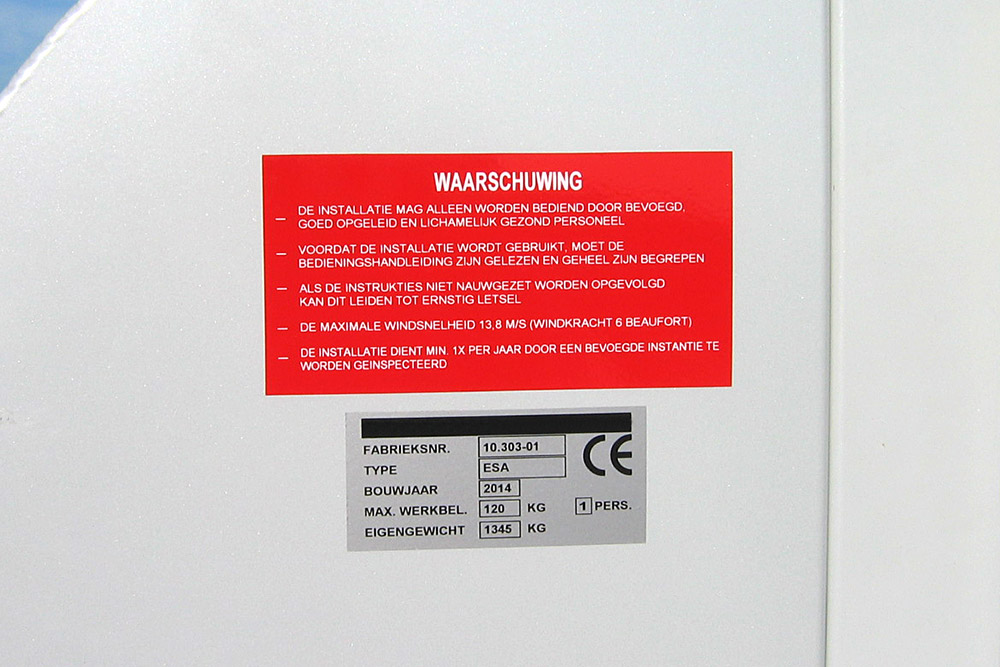
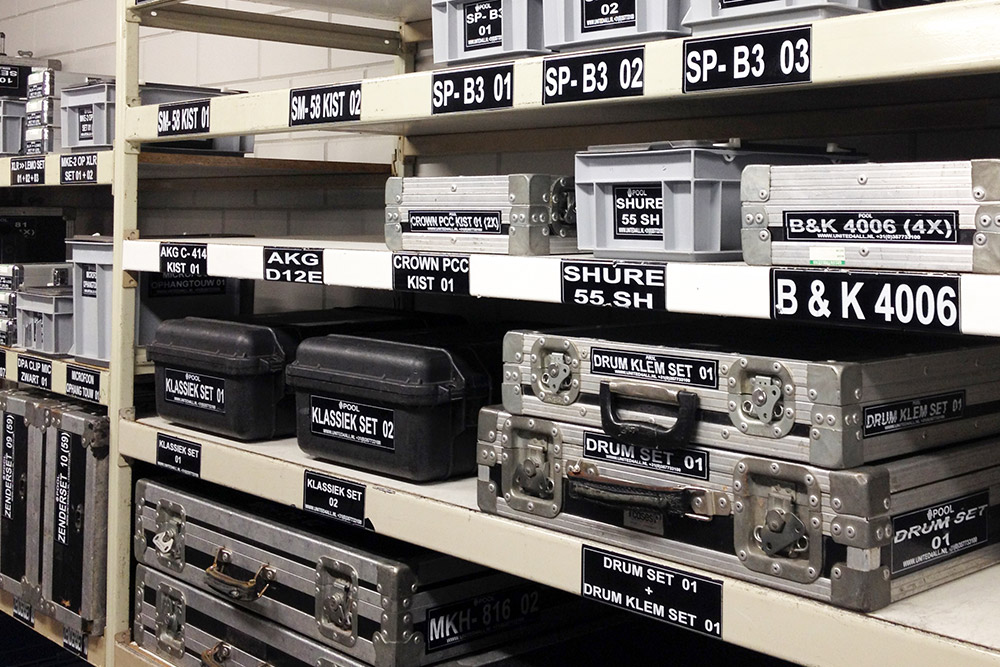
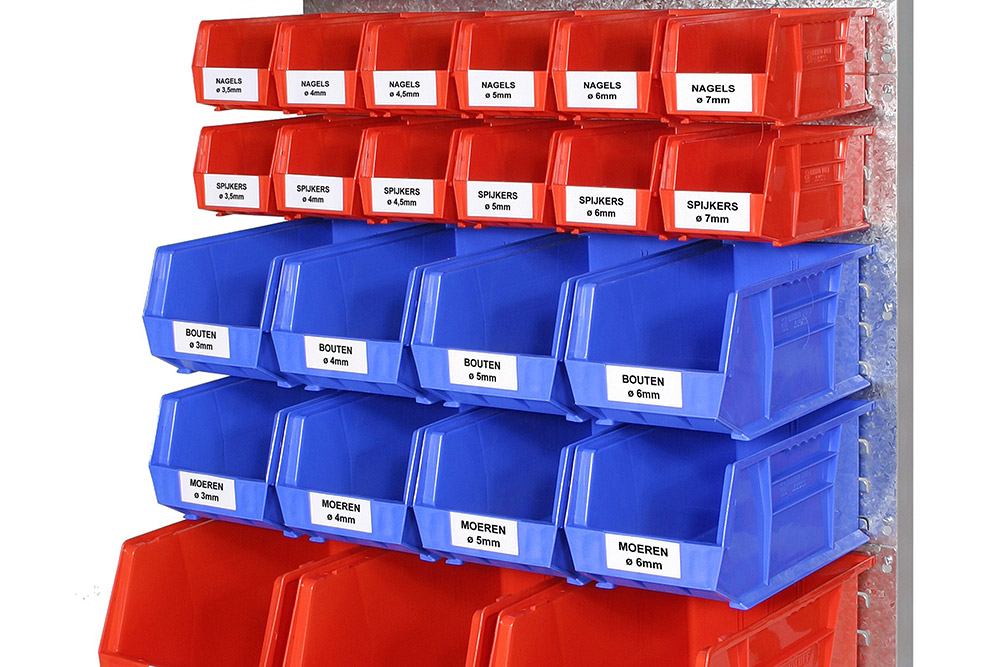
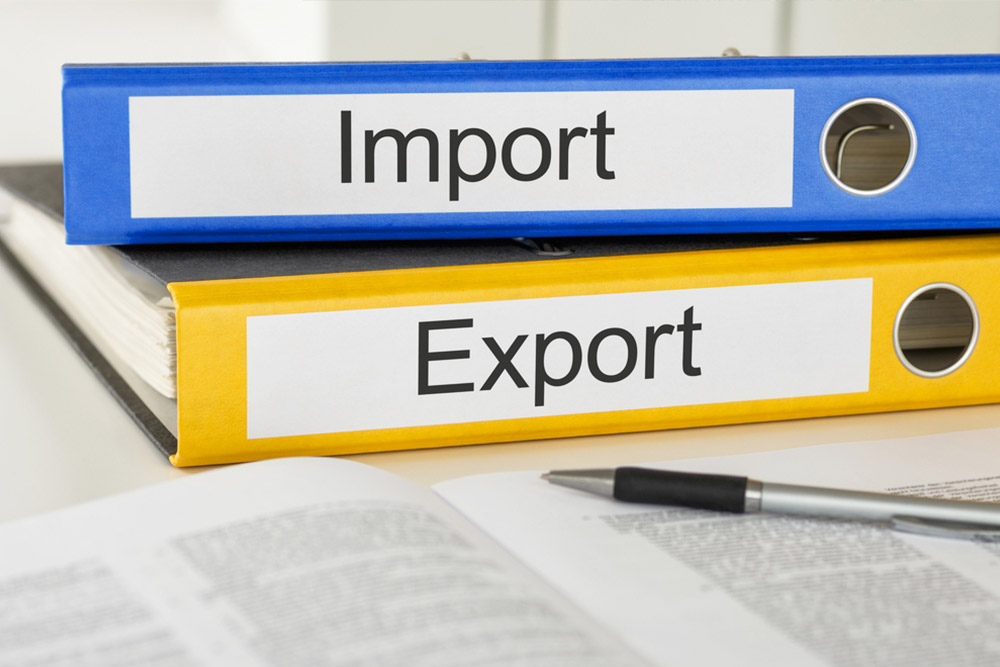
Met de SMS-330 maakt u eenvoudig alle onderstaande labels.
Staat uw toepassing hier niet bij? Neem contact met ons op!
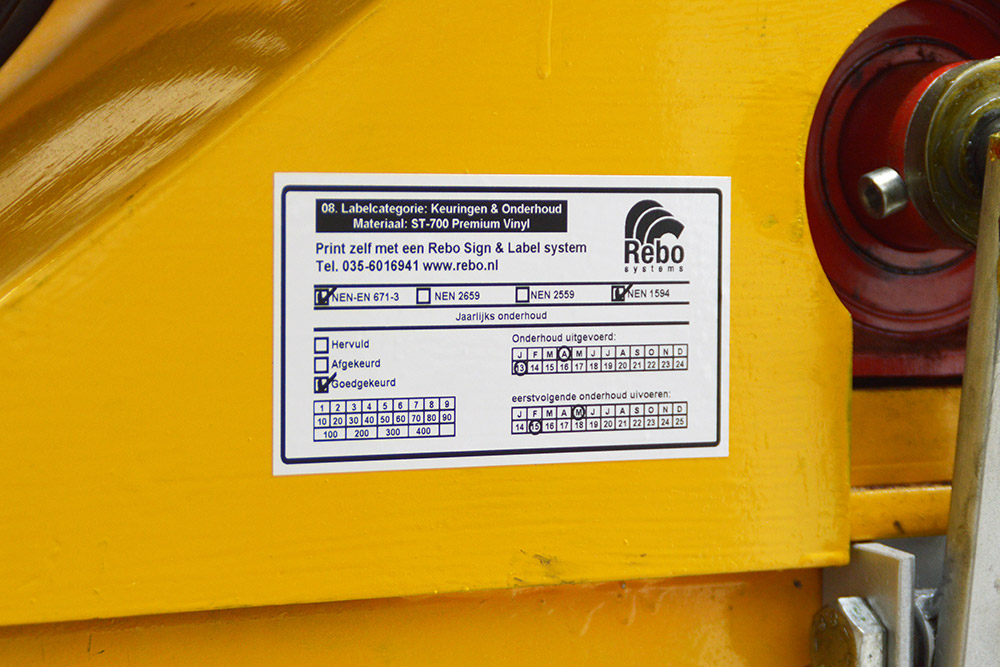
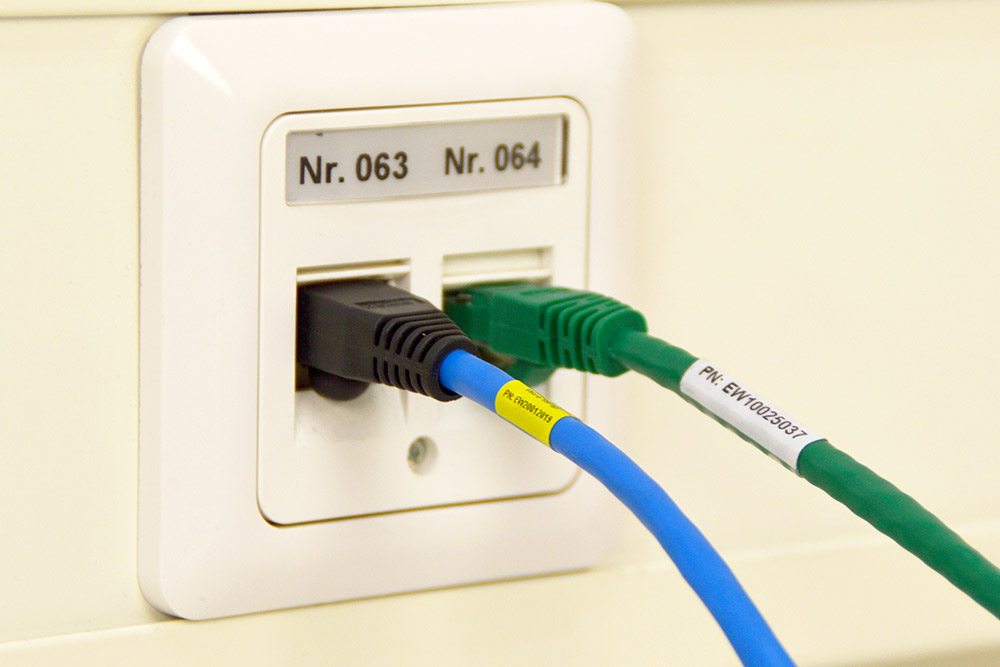
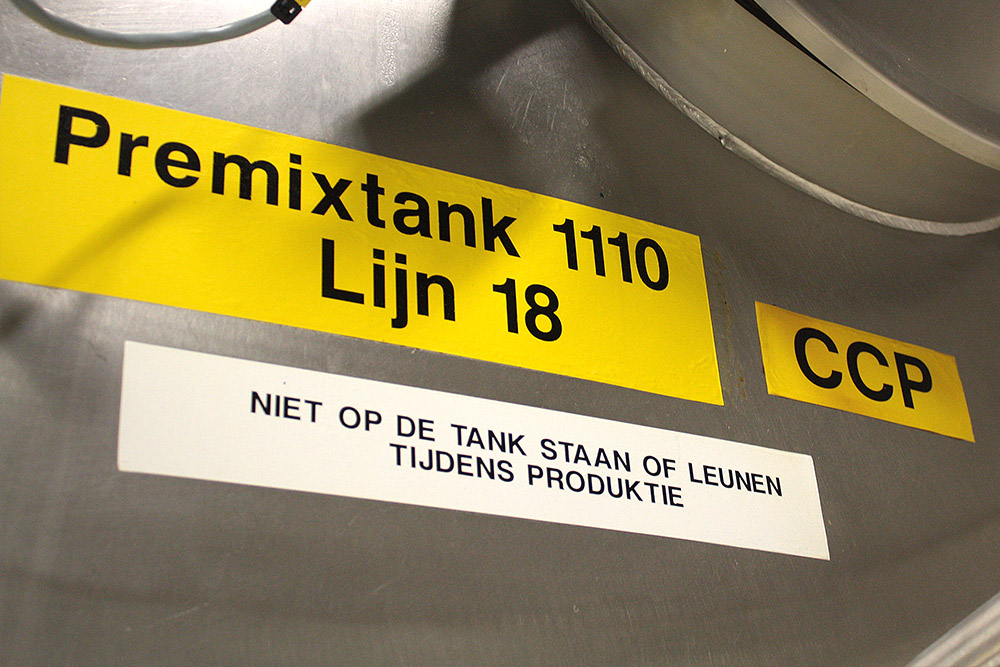
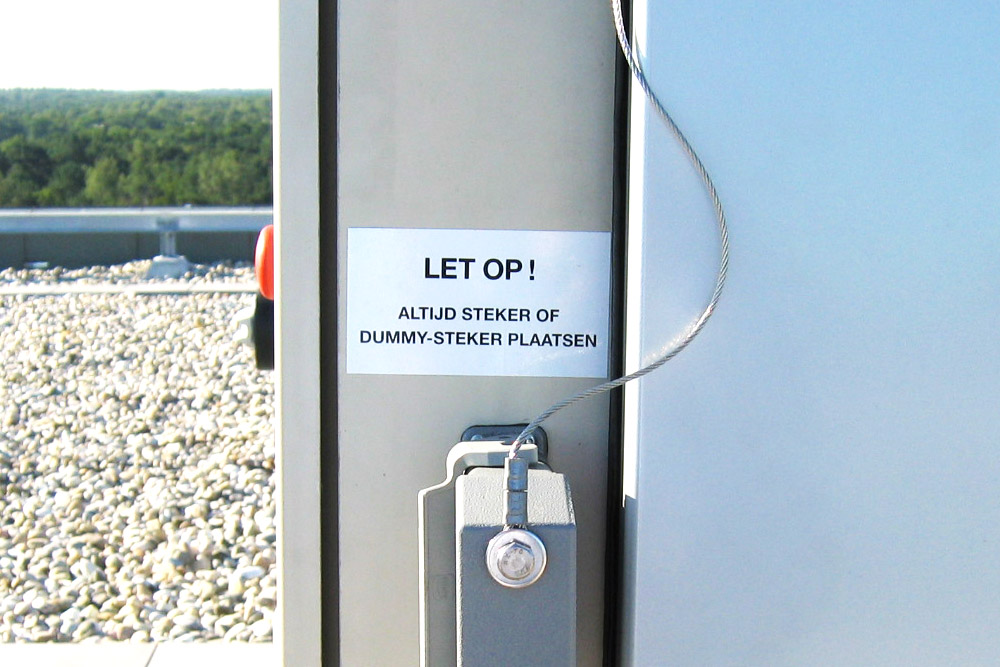
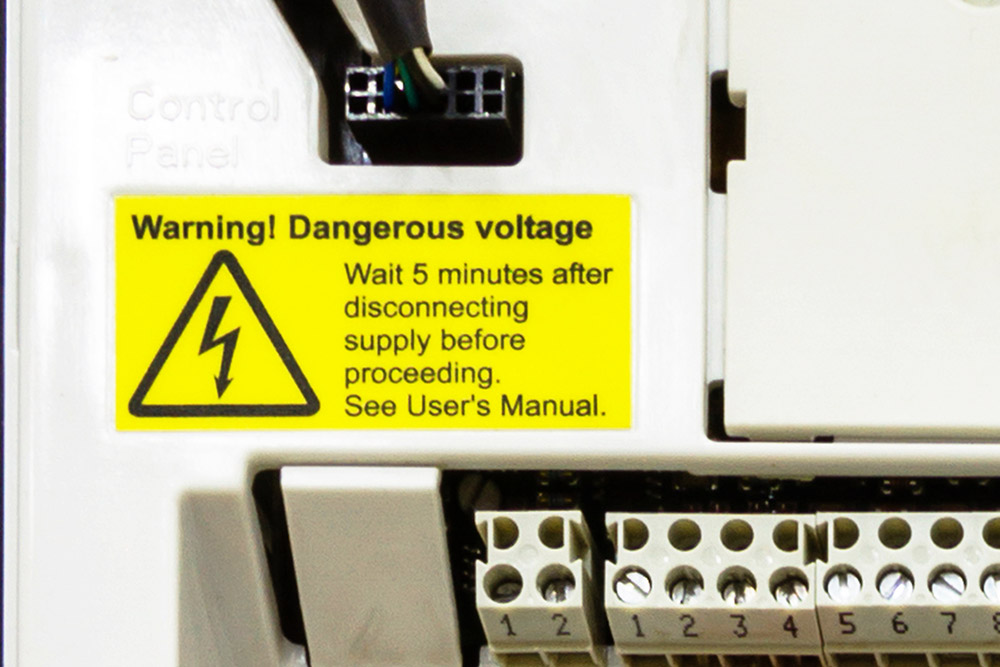


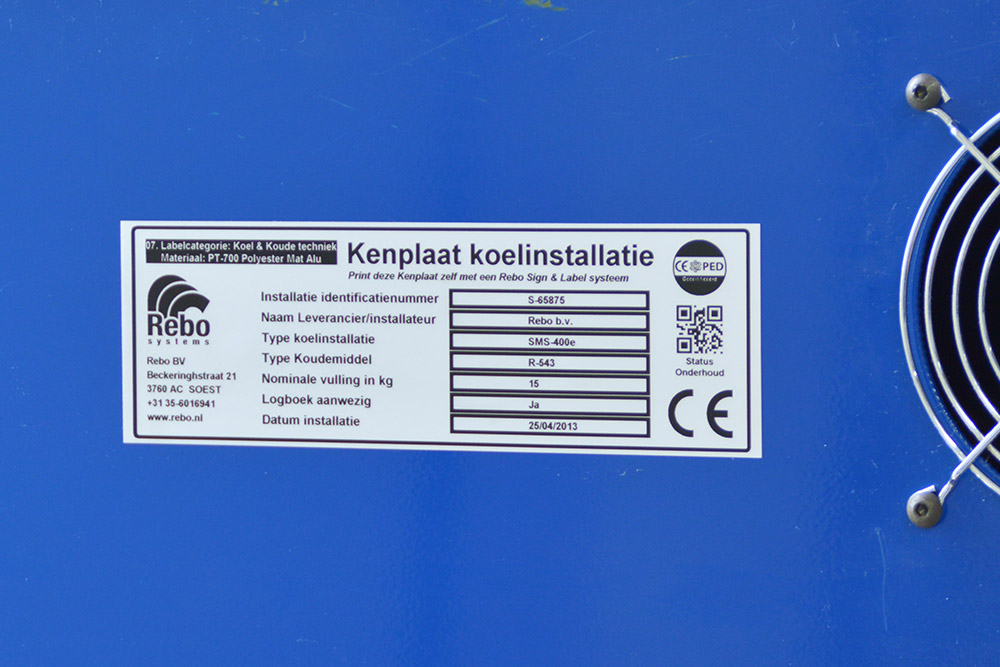
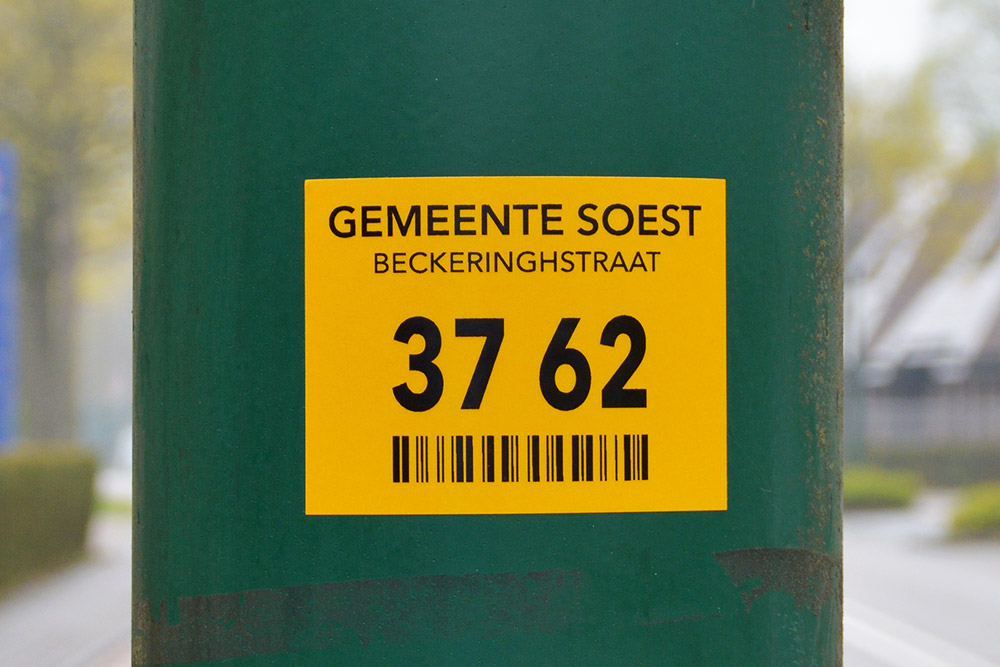
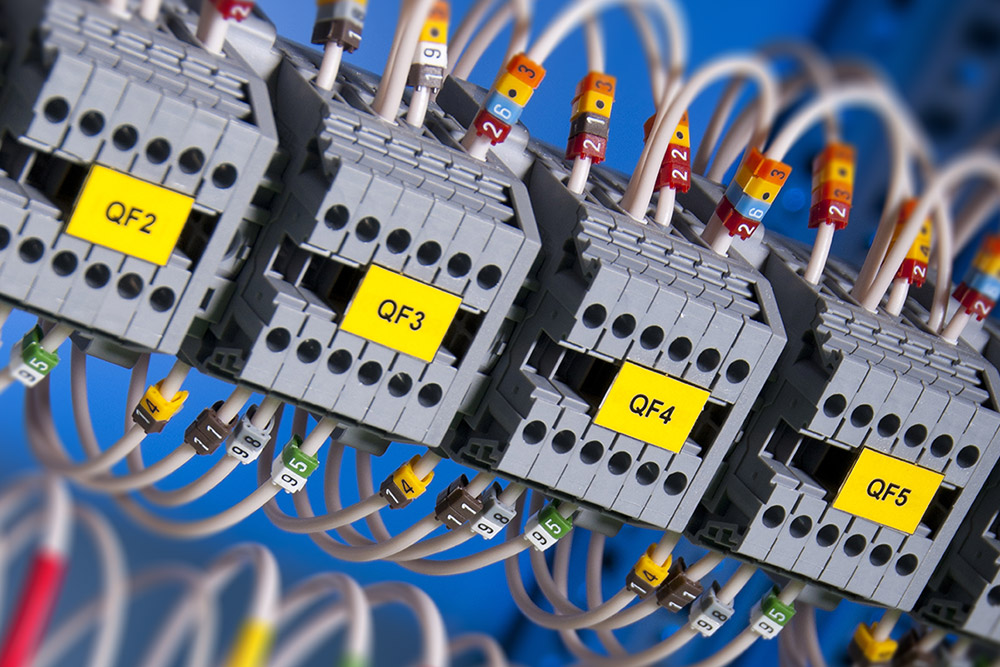
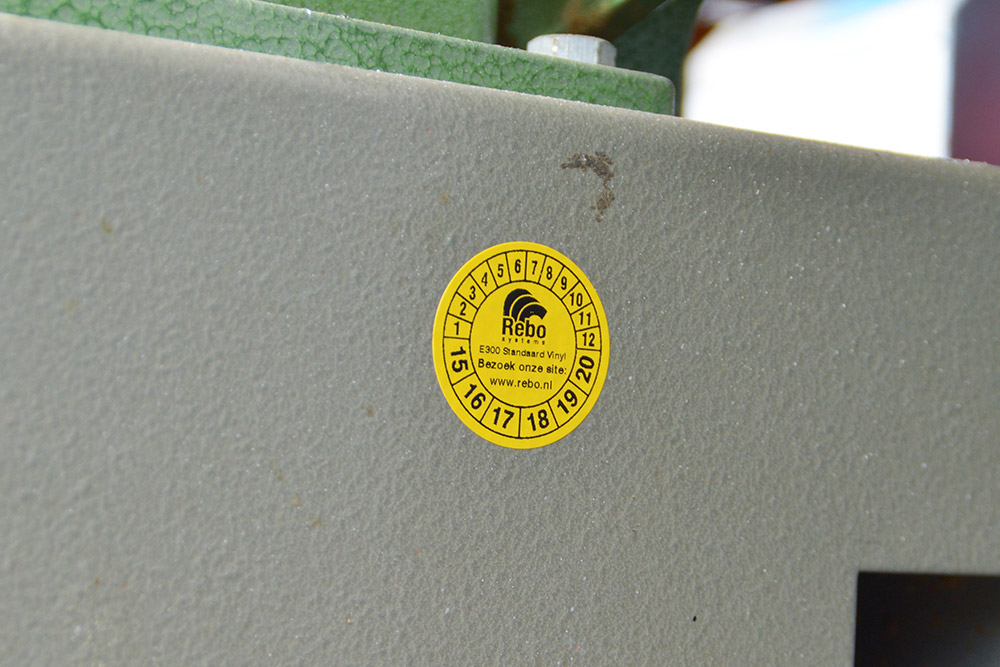
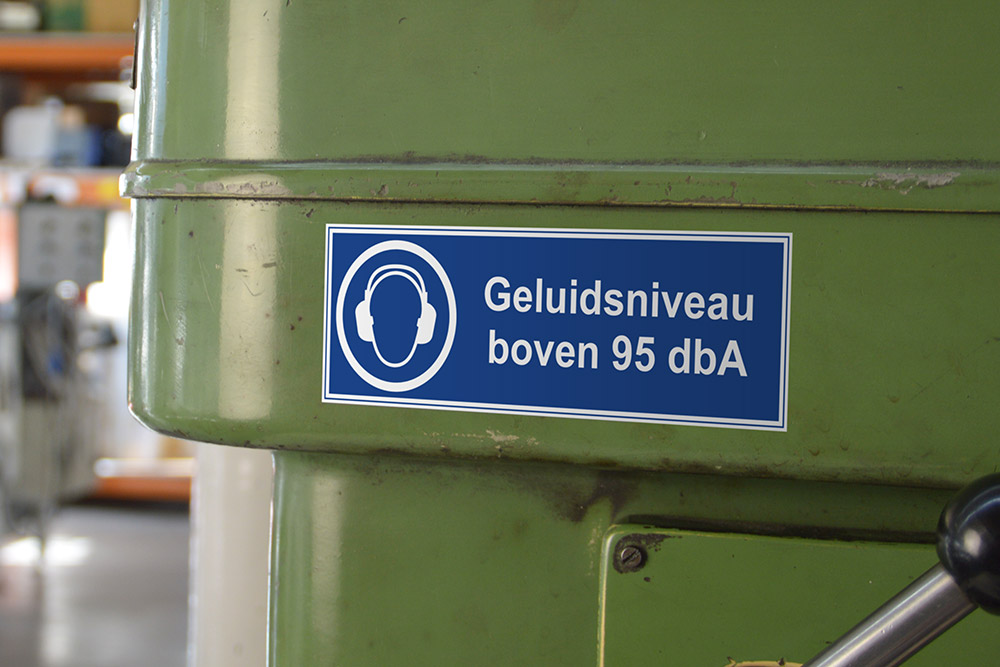
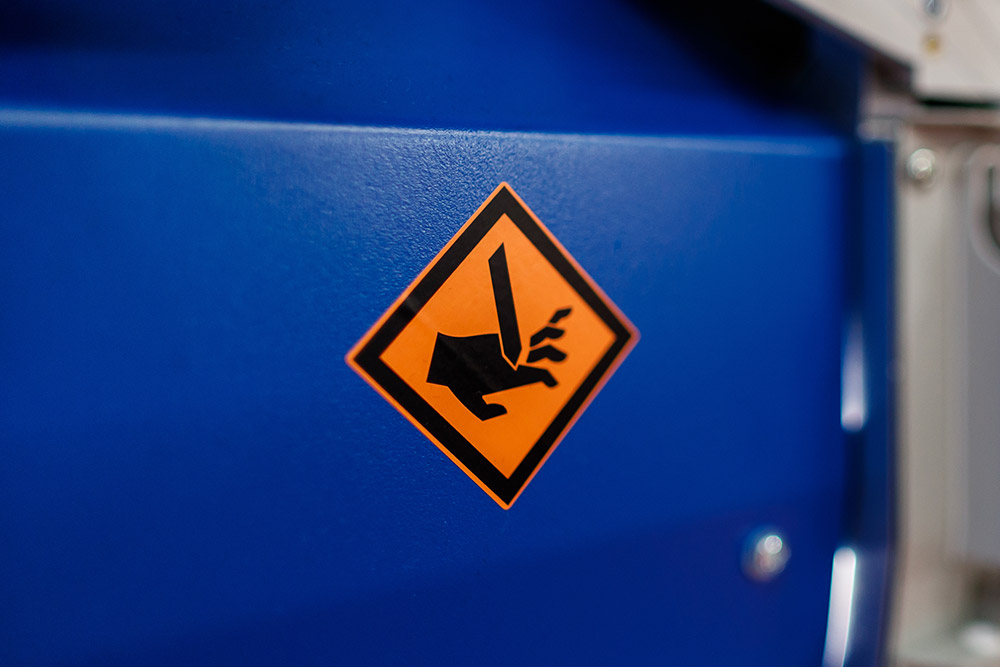
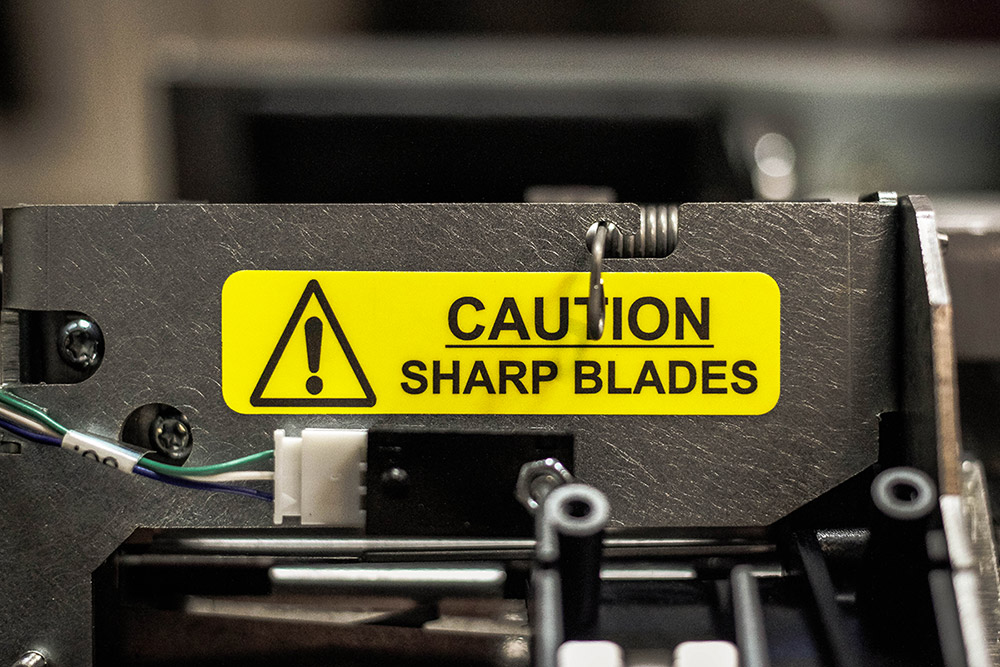
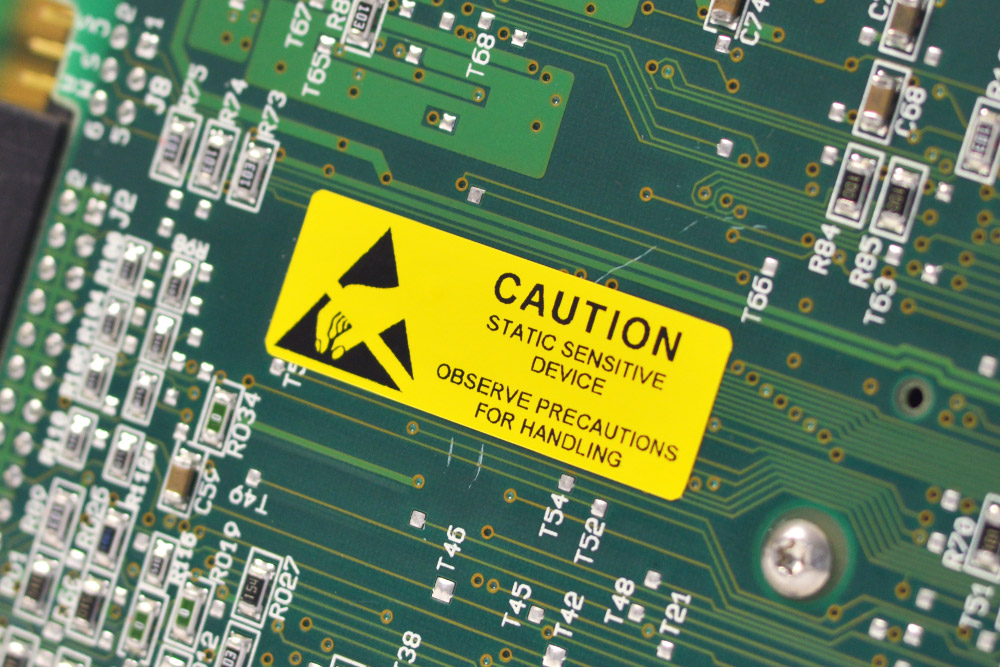
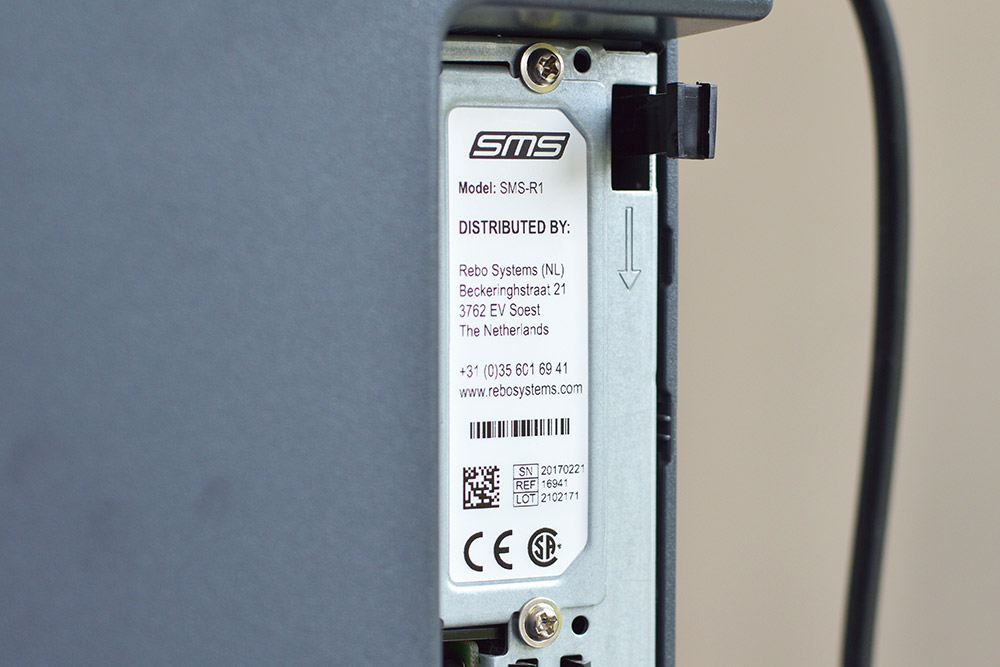
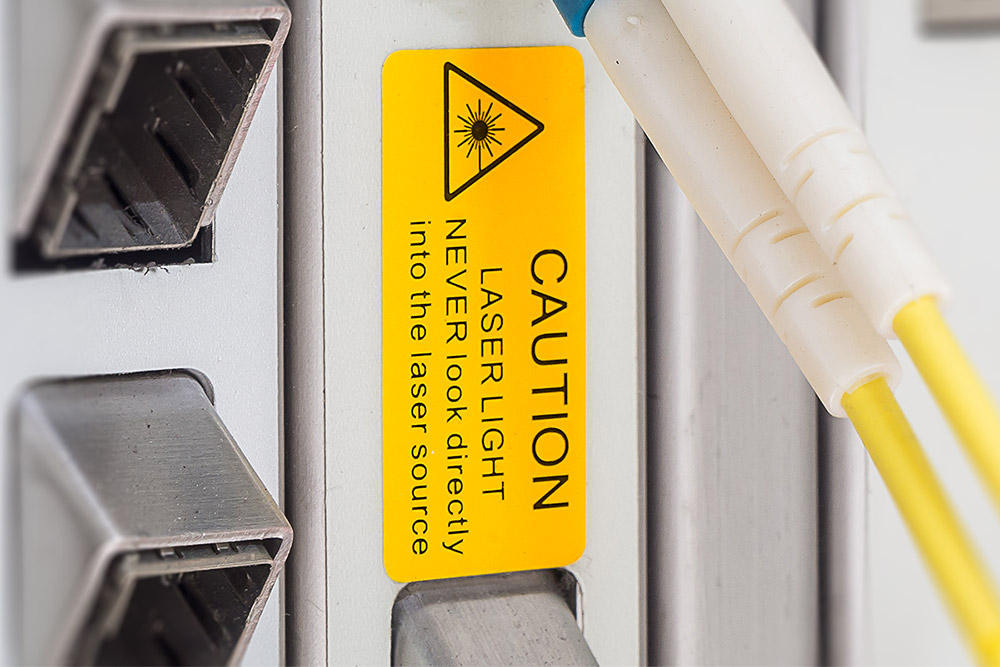
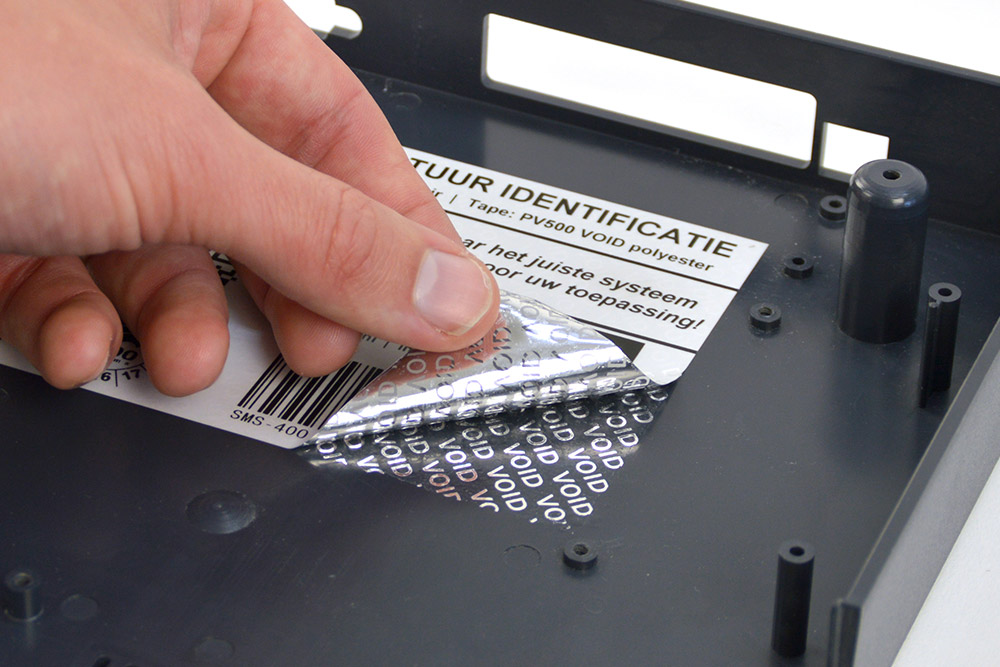
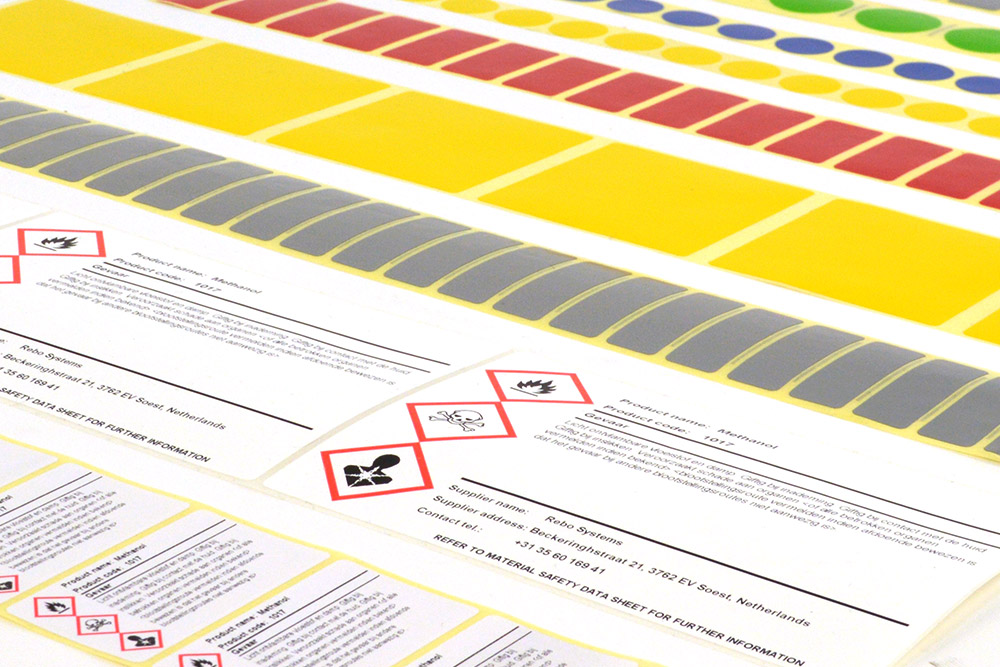
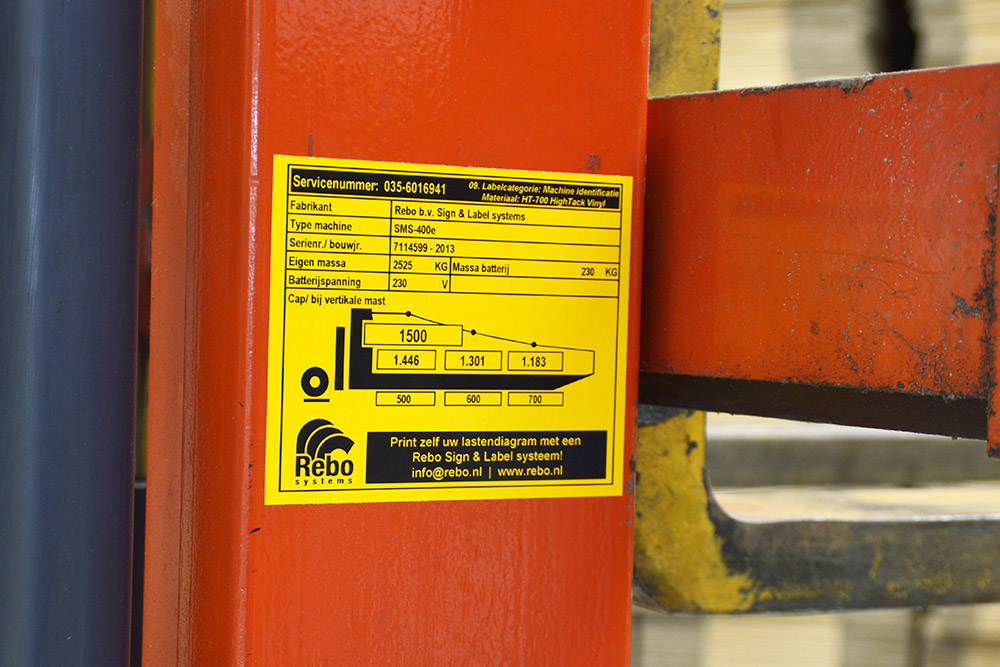
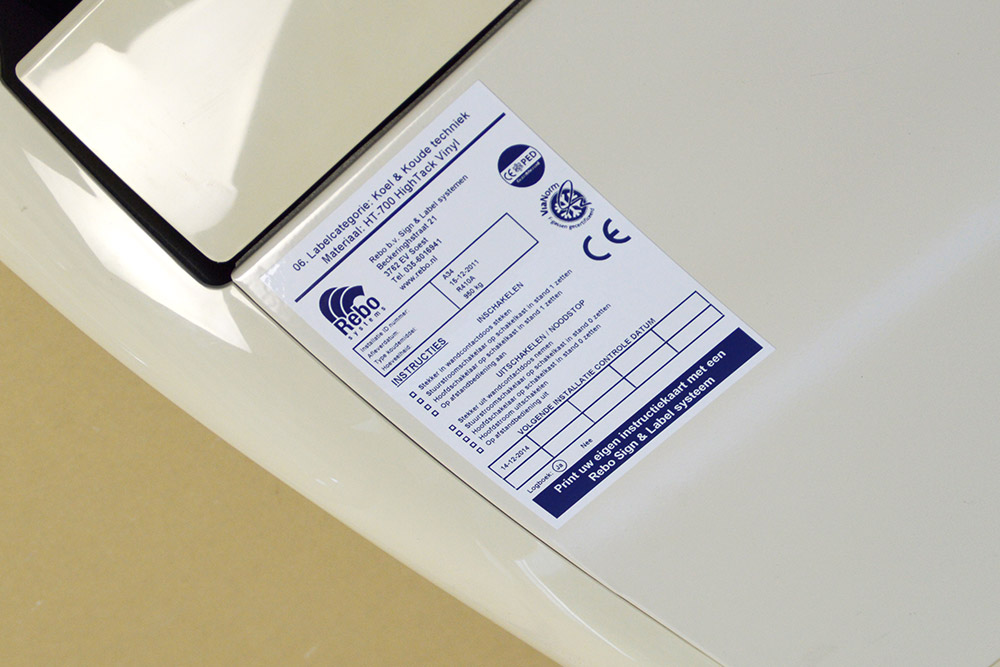
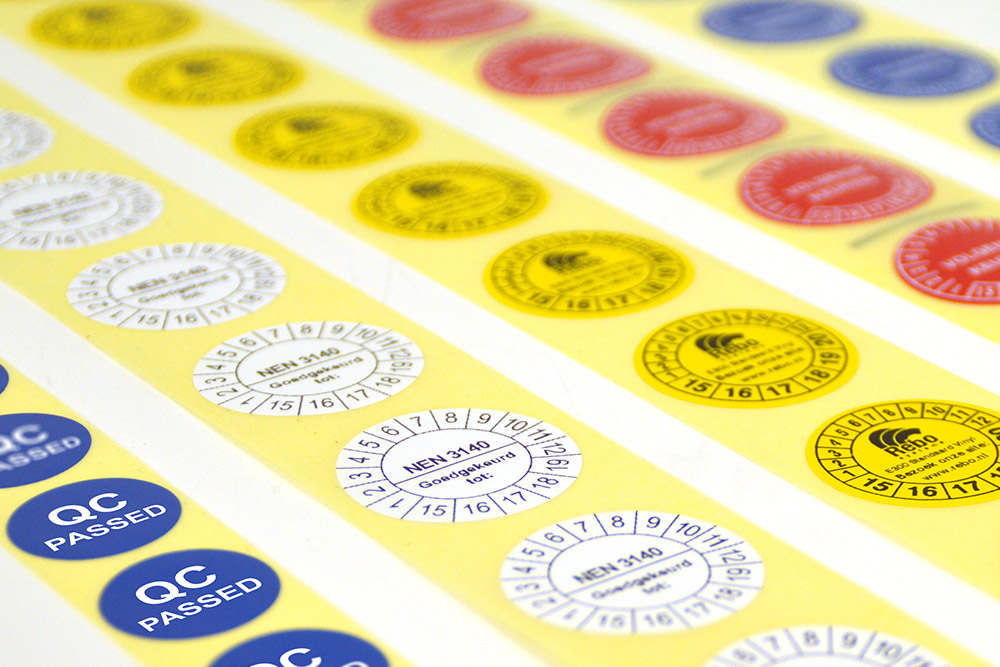
(Click on an image to enlarge it)
Print speed
20 - 70MM/s
Resolution
300DPI
Print width
Max. 81MM
Print length
~2000MM
Specifications
Printer type
Thermal transfer
Resolution
300DPI
Print speed
20 - 70MM/s
Print length
~2000MM
Print width
Max. 81MM
Dimensions
L 210MM x W 135MM x H 88MM
Weight
960 gr.
Connectivity
USB-C | Bluetooth
Operation
1x button Setting / Power | 1x button Feed
Sensors
1x Mark/Gap | 1x “Printhead open”
Certification
CE, FCC, UKCA, RoHs
Output voltage
5.0V - 1.0A
Materials
Standard vinyl & polyester label sizes
20 MM Ø (880 st.)
25 x 12 MM (1400 st.)
25 x 25 MM (720 st.)
30 x 15 MM (1140 st.)
30 MM Ø (620 st.)
40 x 20 MM (880 st.)
50 x 25 MM (720st.)
60 x 20 MM (880 st.)
60 x 35 MM (520 st.)
60 x 125 MM (150 st.)
68 MM Ø (260 st.)
70 x 40 MM (460 st.)
70 x 52 MM (360 st.)
80 x 20 MM (880 st.)
84 x 126 MM (150 st.)
Standard colours
Extra colours
Extra colours
(minimum purchase 3 rolls)
Print ribbon cassettes (45M)
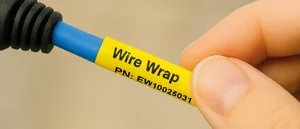
Wrap-around labels (wire-wraps)
25 x 36MM
25 x 63MM
Downloads
Software
Onze SMS-330 labelprinters worden met gratis software geleverd:
SMS SmartLabel is een Android app waarmee u op uw telefoon en tablet labels kunt ontwerpen en printen.
SMS WebLabel is de online (cloud) versie hiervan en is geschikt voor Windows en Mac OS X*.
* Op Mac OS X kunt u labels ontwerpen, opslaan en synchroniseren met andere apparaten. Houd er echter rekening mee dat de printerdriver alleen compatibel is met Windows, waardoor direct afdrukken vanaf een Mac niet mogelijk is.
Drivers & Tools
SMS-330 Printer Driver
Driver voor gebruik van SMS-printers in Windows (.EXE bestand)
Documents
SMS-330 User Manual
Bekijk de gebruikershandleiding van de SMS-330. (.PDF bestand)
Label templates
Om het ontwerpen en printen van labels te vereenvoudigen hebben wij diverse label sjablonen (templates) beschikbaar die u kunt downloaden en eenvoudig naar wens kunt aanpassen en afdrukken.
Bekijk en download op deze pagina alle label templates.
Zoekt u een specifieke template of heeft u een andere vraag? Neem gerust contact met ons op.