Is the print quality of your labels not as expected? There can be several causes for this.
In this article, we explain how to restore optimal print quality and achieve clear, high-quality labels again.
Vertical lines on the label #
Are there unprinted vertical lines on your labels? If so, the printhead is likely dirty.
The printer cannot print properly in areas where dirt has accumulated on the printhead, resulting in blank lines on the label.
1: Turn off the printer.
2: Remove the cassette from the printer.
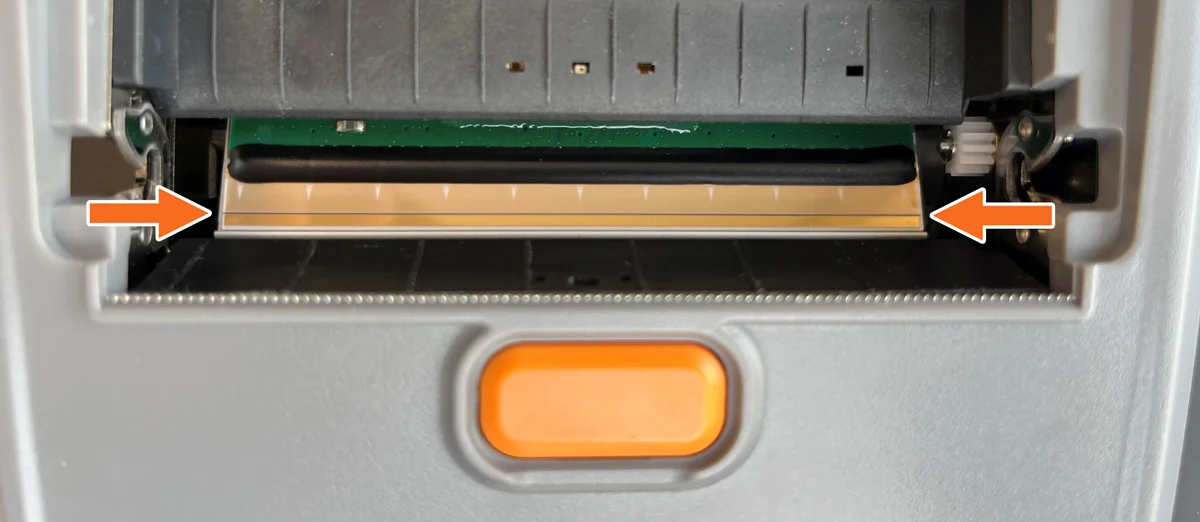
3: Check the printhead for any dirt or damage. The printhead is the thin black line running horizontally across the metal plate at the front of the printer:
4: Carefully clean the printhead using an isopropyl alcohol wipe or a microfiber cloth.
If you still see dirt, marks, or other irregularities on the printhead after cleaning, it is unfortunately possible that the printhead is damaged. In that case, please contact our support team for assistance.
Diagonal lines on the label #
Do you see diagonal unprinted lines on your label? If so, the printer may be set to a temperature that is too high and/or a print speed that is too low.
These lines are known as “wrinkles” and can usually be resolved by adjusting the print density (heat setting) and print speed.
1: Open the label in your application or software.
2: Open the print dialog.
3: Gradually decrease the print density (darkness) and increase the print speed until the desired print quality is achieved.
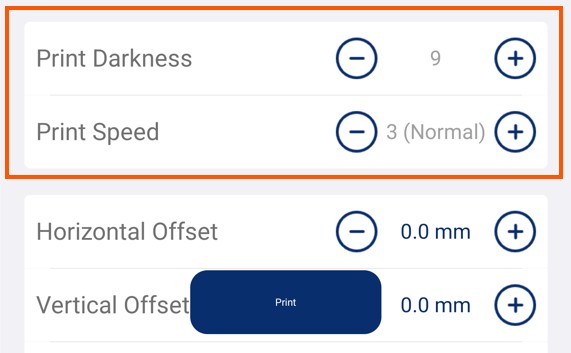
4: Is the result satisfactory? If so, don’t forget to save your label so these settings are retained for future prints.
Print on the label is faint or difficult to read #
Is the print on your label faint or difficult to read? If so, the printhead may not be receiving enough heat, or the print speed may be set too high.
Print quality can often be improved by adjusting the print density (heat setting) and print speed.
1: Open the label in your application or software.
2: Open the print dialog.
3: Gradually increase the print density (darkness) and decrease the print speed until the desired print quality is achieved.
4: Is the result satisfactory? If so, don’t forget to save your label to ensure these settings are retained for future prints.