Creating a label with a database connection #
In the example on this page, we use an Excel file and link it to a label. However, you can also use other types of database files such as Access, Text Documents, and Google Sheets.
Example of an Excel file:

Please note: The first row with columns in your Excel file is recognized by NiceLabel as column names. You should not modify these after importing.
How do I connect NiceLabel to an (Excel) database? #
1. Start NiceLabel Designer and create a label (or open an existing label).
2. On the left side of your screen, under the Databases option, click the + symbol.
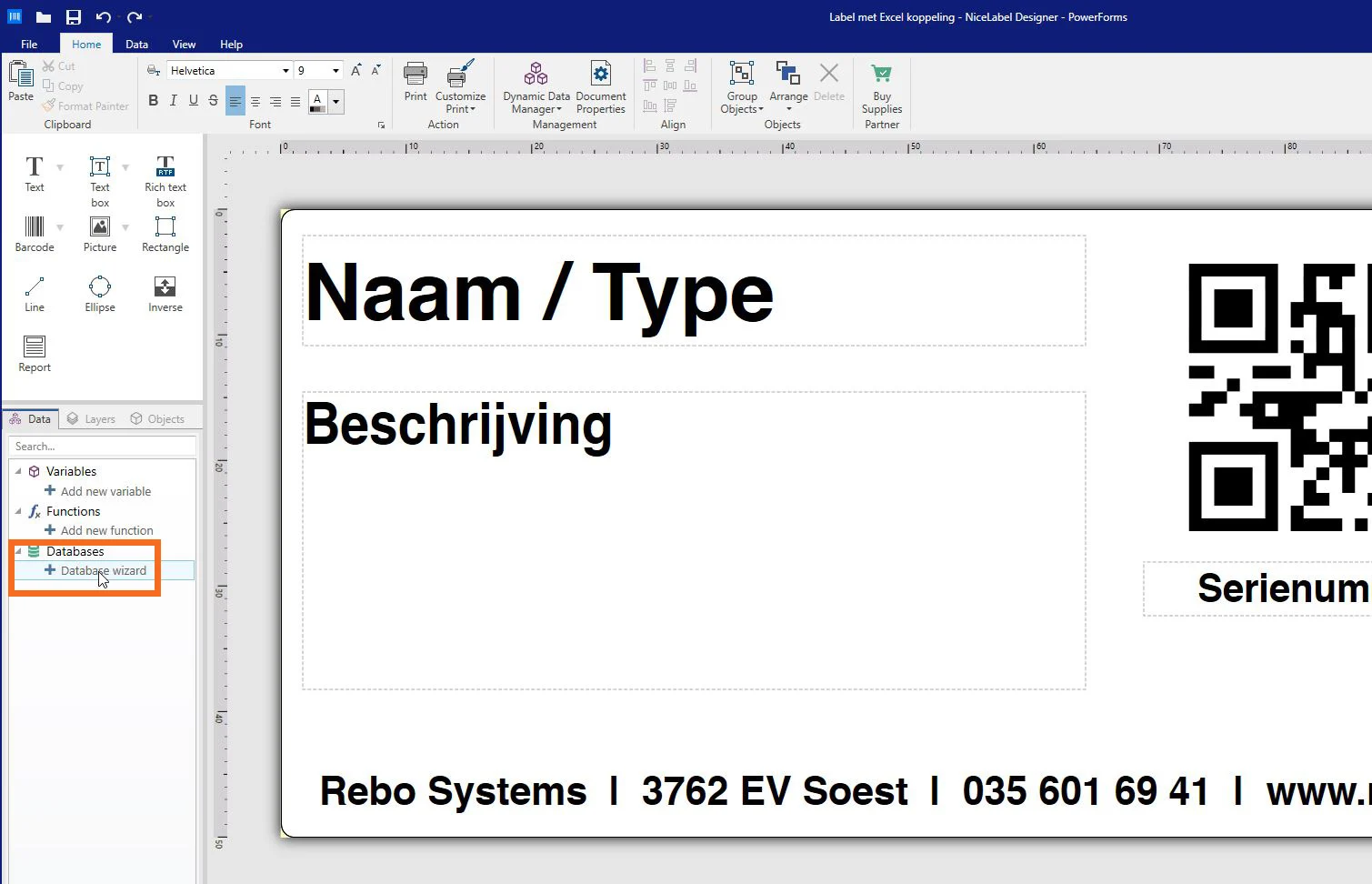
3. Go through the first steps, then select the desired database type and click Next.

4. Now click Browse, select your database file, and then click Next again.

5. You will now see an overview of the different fields (columns) found in your file.

6. Next, choose whether you want to create new text objects based on the fields in your file (B) or link existing texts in your label to the correct fields later (A).
After you have made a choice, click Next.

7. You will now see a preview of your Excel file. Press Finish to complete the database connection

Your database is now linked in NiceLabel, and it is now time to link the text objects to the correct database fields.
How do I link the fields from my (Excel) database to the text fields in my label? #
1. Select a desired text object and open the Source tab in the Properties (double-click on a text if the properties are not visible)
2. Expand the drop-down menu under Connected Data Source and select the desired database field here:

As soon as you have linked all the desired fields, your label is ready to print!